This is an update pushed by Microsoft on December 2025.
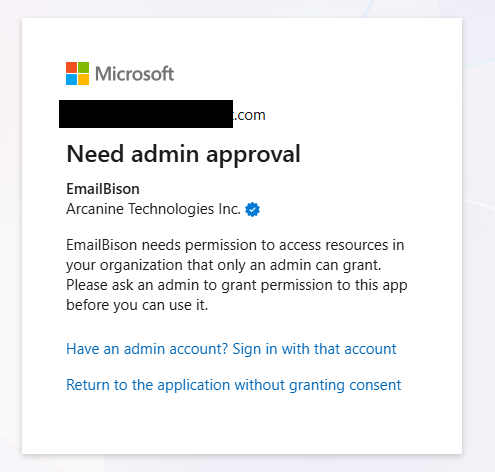
If you use an ESP to manage your inboxes, reach out to them and tell them to assign the Cloud Application Administrator role to the emails where this screen pops up.
If you manage the emails yourself:
Users > Active users
Click on an email to edit.
Manage roles.
Give Admin center access role.
Scroll down.
Click Show all by category.
Checkmark “Cloud Application Administrator” under Identity.
Save.
You should be able to upload the email account now.
Unfortunately there’s no way (that we know of) to do this in bulk or on tenant level.
Microsoft has changed how permissions work, and IMAP now requires admin approval.
To resolve this:
Ensure one account from the same tenant has the “Cloud Applications Administrator” role.
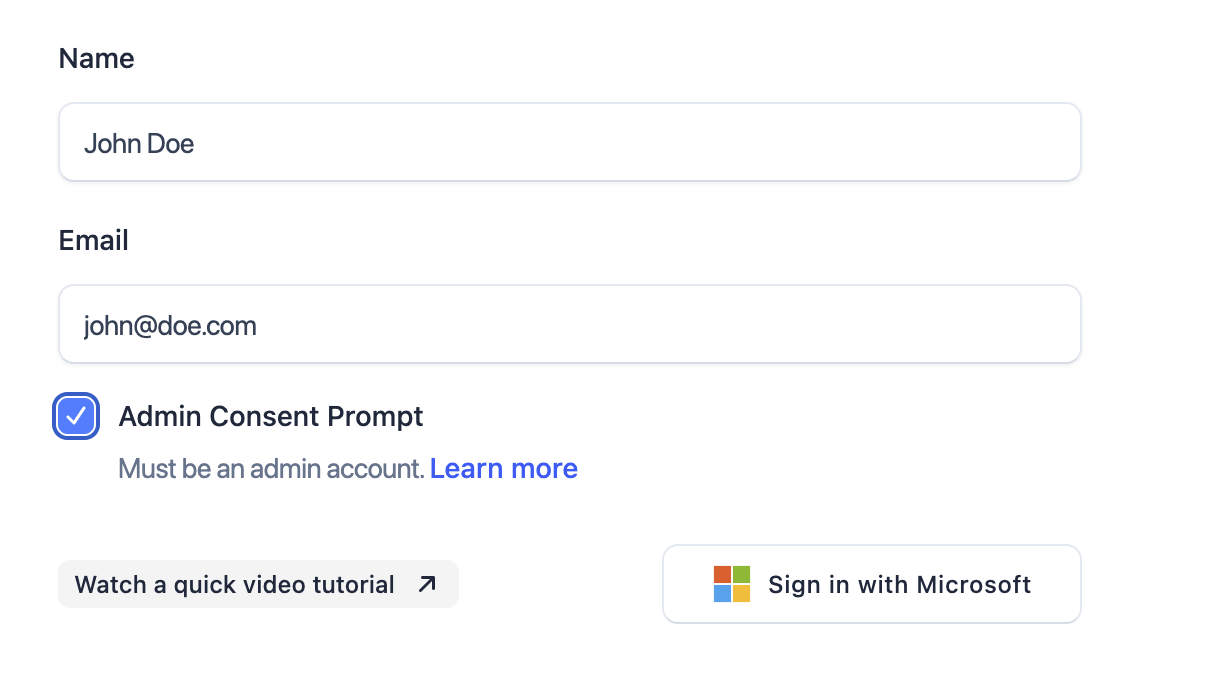
Sign in with this account, ensure that the “Admin Consent Prompt” on EmailBison checkbox is checked.
Accept the permissions on this admin account, you will now be redirected back after the permissions are accepted tenant-wide and the account has been connected.
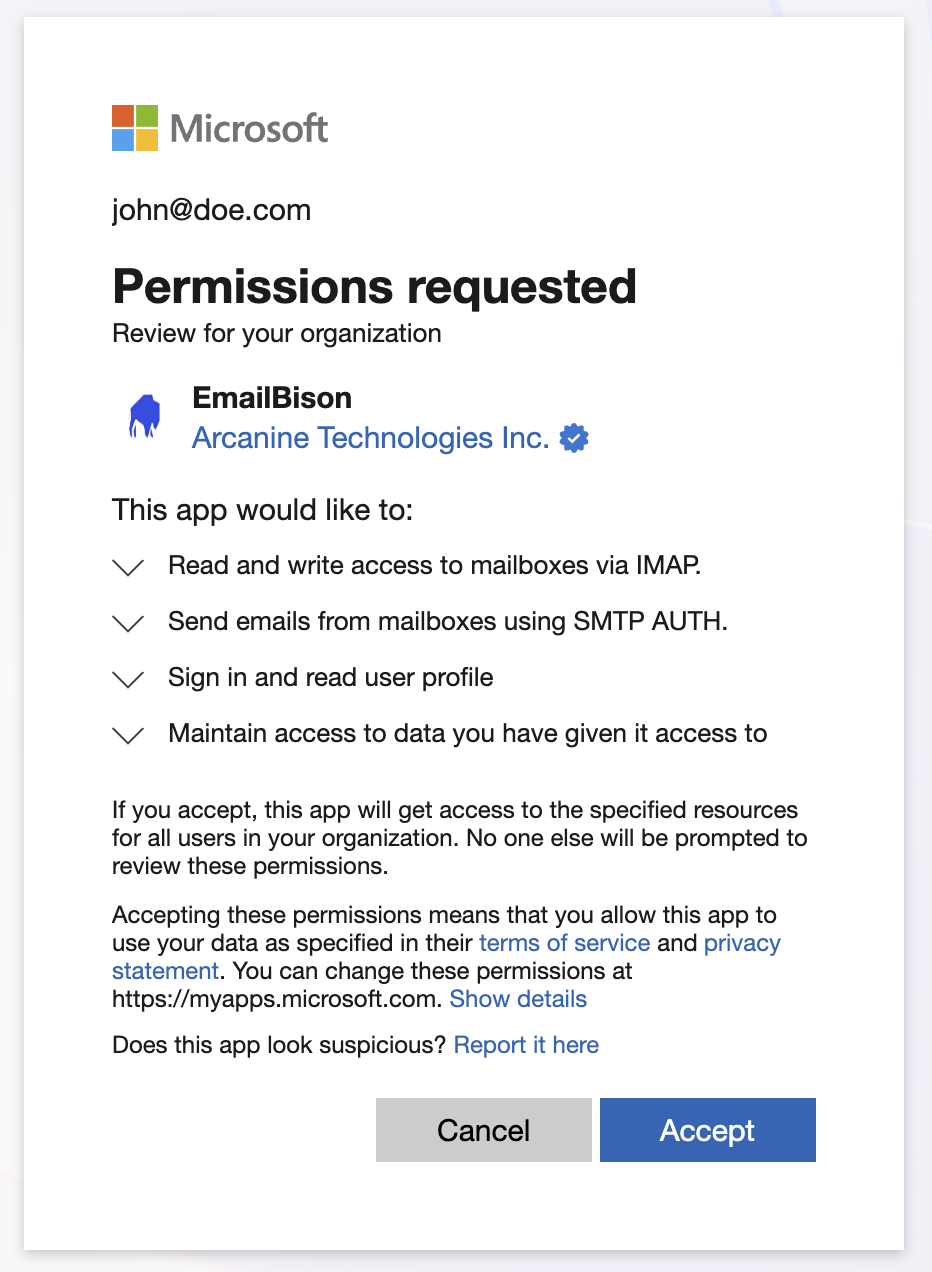
The rest of the accounts under this tenant will connect successfully. Do not use the “Admin Consent Prompt” checkbox for the rest of the non-admin accounts.
For usage of the bulk uploader, you can complete these steps once per tenant, or have this be automated for you. To learn more about automating this, please visit the bulk uploader page or refer to how_to_use.txt in the zip file.
